
Quick guide
How to get your Instagram backup codes
We use a single backup code once to complete your secure Instagram login. Here's exactly how to find one inside the Instagram app, with screenshots for every step.
Video walkthrough
Can't see backup codes in the app? Skip to Step 4 below — the video doesn't cover the fix, but the screenshots do.
1
Open Instagram settings
From the app on your phone
- Open the Instagram app on your phone.
- Tap your profile picture in the bottom right to go to your profile page.
- Tap the three lines (☰) in the top right corner.

2
Go to security settings
Through Accounts Center → Two-factor auth
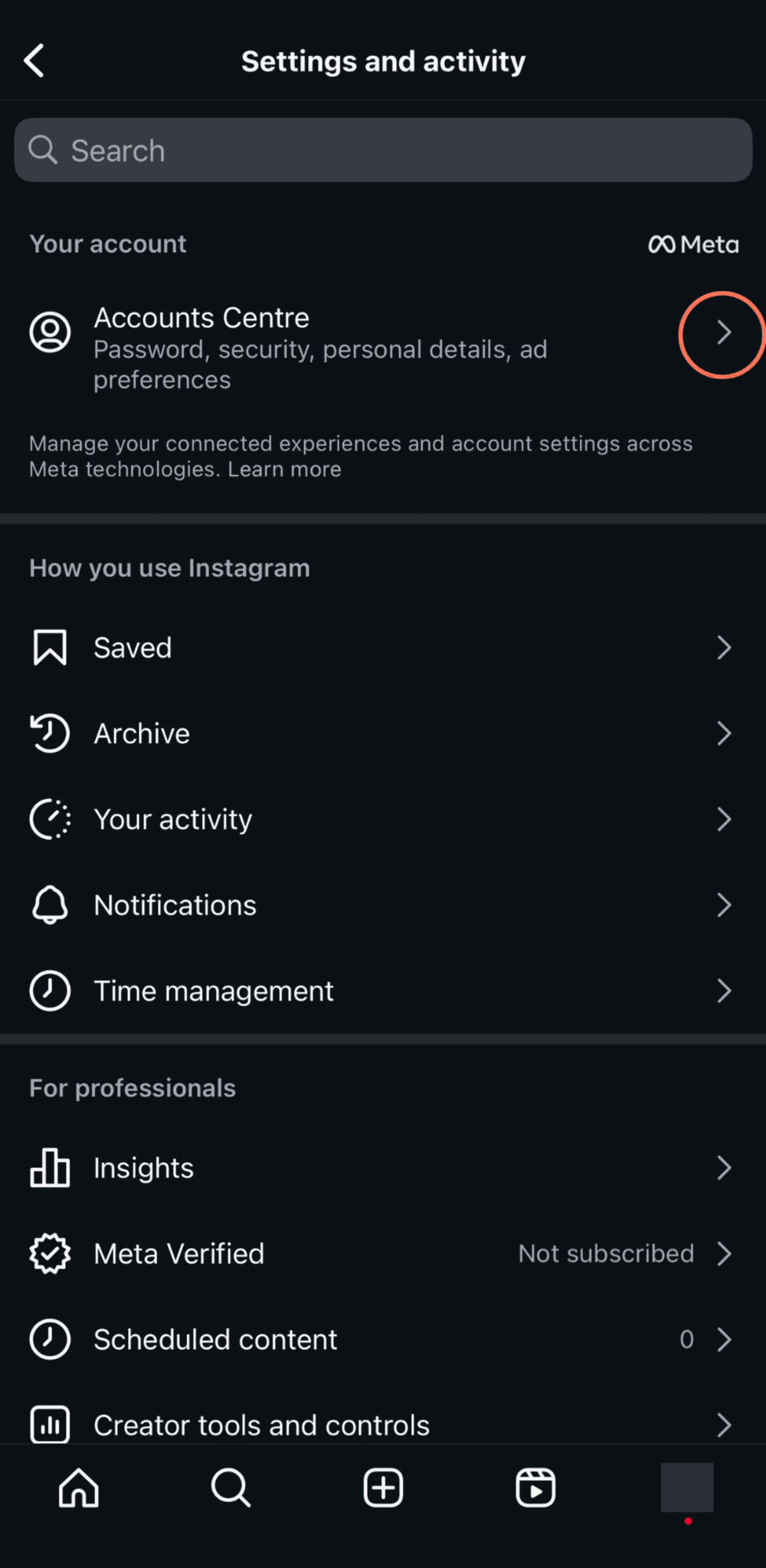
- Tap "Accounts Center."
- Select "Password and security."
- Tap "Two-factor authentication."
- If you manage multiple accounts, select the Instagram account you want the backup codes for.


3
Find your backup codes
Under additional methods
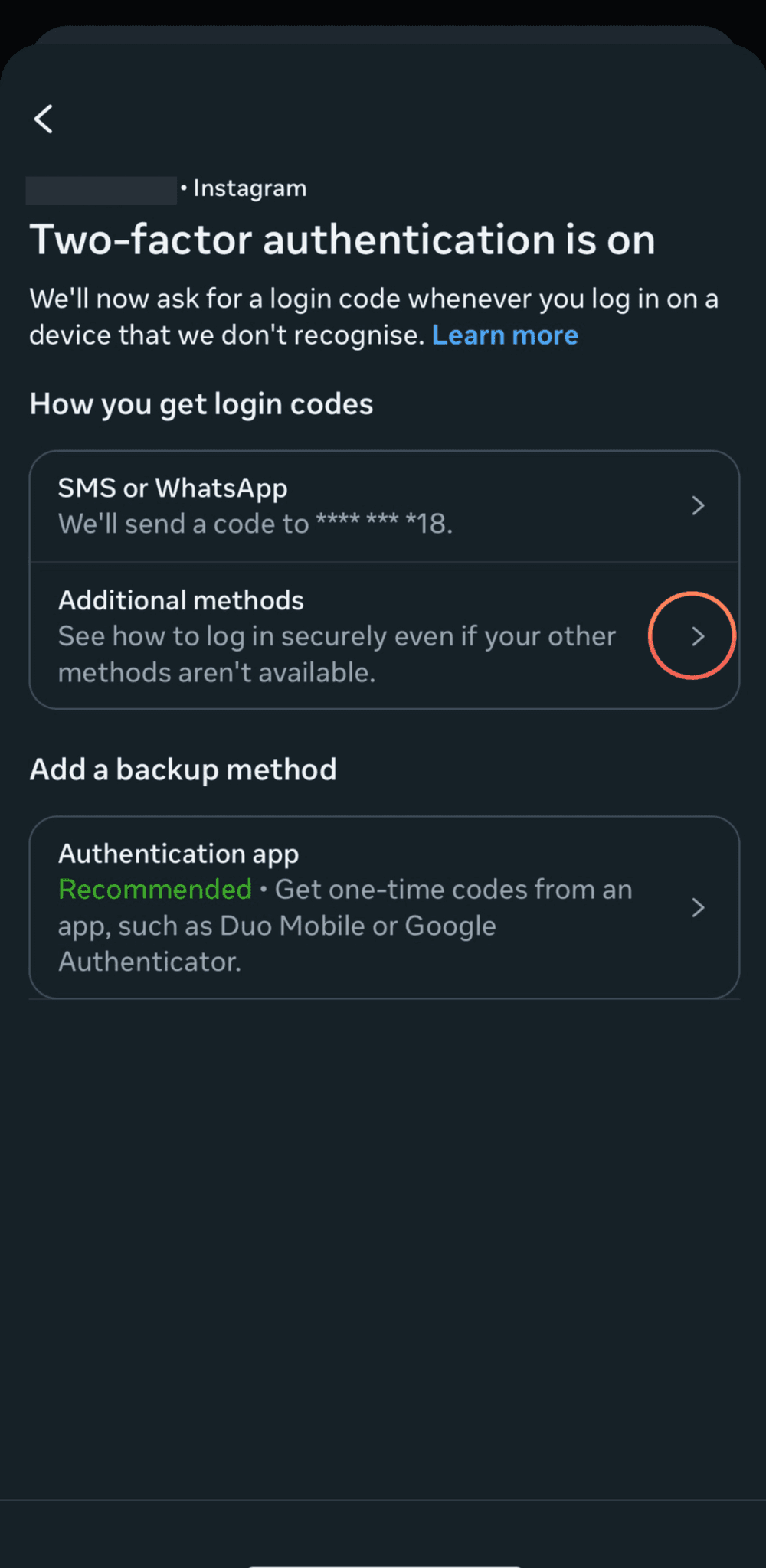
- Under two-factor authentication, tap "Additional methods."
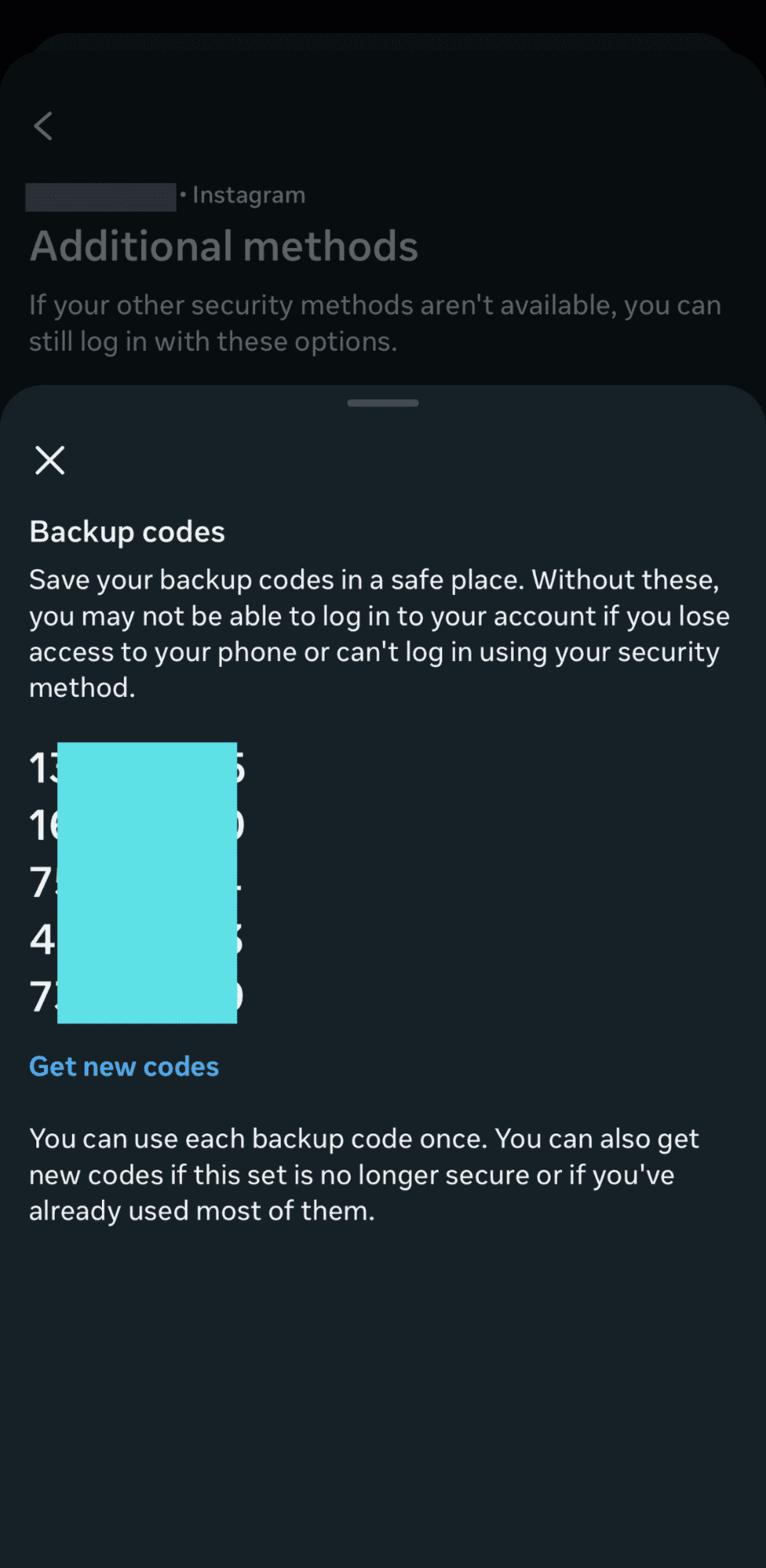
- Tap "Backup codes."
- You'll see a list of 8-digit codes. Copy any one code and paste it into the backup code field on the login page.
Note: If "Backup codes" doesn't appear in the list, that's normal — see Step 4 below to fix it.

4
Can't see "Backup codes"?
Verify your phone number first
If "Backup codes" doesn't appear as an option, you need to verify a phone number first. It only takes a minute.
- Go back to the Two-factor authentication screen.
- Select SMS or WhatsApp and follow the prompts to verify your phone number.
- Once verified, go back one step. "Additional methods" will now appear.
- Tap "Additional methods" → "Backup codes" and your codes will be visible.


You're all set
Head back to your dashboard and paste your backup code into the form. One code is all we need to complete the secure connection.
Back to dashboard →Need a hand?
If you get stuck at any point or "Backup codes" still doesn't appear after Step 4, email admin@thescaleslab.com and someone from the team will help you directly.